Blog
Blog
The email says the session is at ten tomorrow, and there’s a line at the bottom: “We’ll connect via Source-Connect.” Or ipDTL. Or a Zoom link with a note asking you to switch on original sound. If you’ve only ever recorded on your own and sent files, a live remote session can feel like being asked to perform in somebody else’s studio through a hole in the wall.
This guide is for voice actors getting ready for their first remote directed sessions, and for anyone whose last one had a dropout, an echo or a nervous ten minutes of “can you hear me now?” It explains what each tool does, why your internet matters more than your mic on the day, how to monitor without hearing yourself late, why you always record a backup, and what to do when the line drops.
First, work out who’s recording whom
In most remote sessions the studio records you, not the other way round. Source Elements, the company behind Source-Connect, says it plainly in its onboarding guide for talent: “Your client will record you on their end.” All you need, it says, is “Source-Connect, your interface, your microphone, and your headphones.”
That’s the theory. In practice, almost every working voice actor records their own copy as well. Dee Bradley Baker, the voice actor behind the long-running guide I Want To Be A Voice Actor!, is blunt about it: “the voice actor will need to record a good, clean back up at the home studio, in almost all instances.”
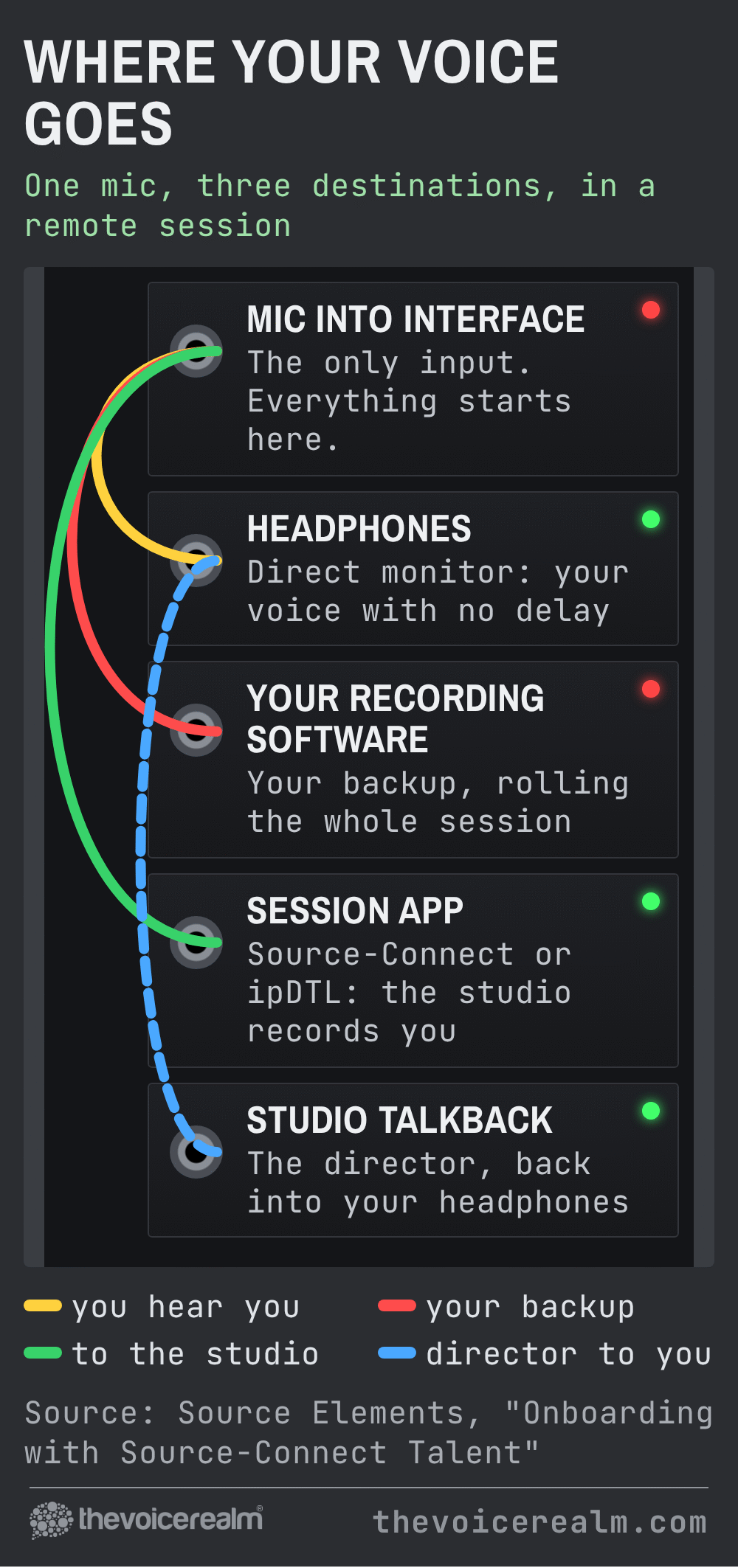
So there are two recordings happening at once. The studio’s copy travels down the internet, and it can glitch. Yours is captured straight from your interface and can’t be touched by a bad connection. Knowing where each one comes from makes every other decision on the day easier.
© The Voice Realm
The tools you’ll be asked to use
You rarely get to choose. The studio picks the system and sends you a link or a contact request, so it’s worth knowing what each one is before the email arrives.
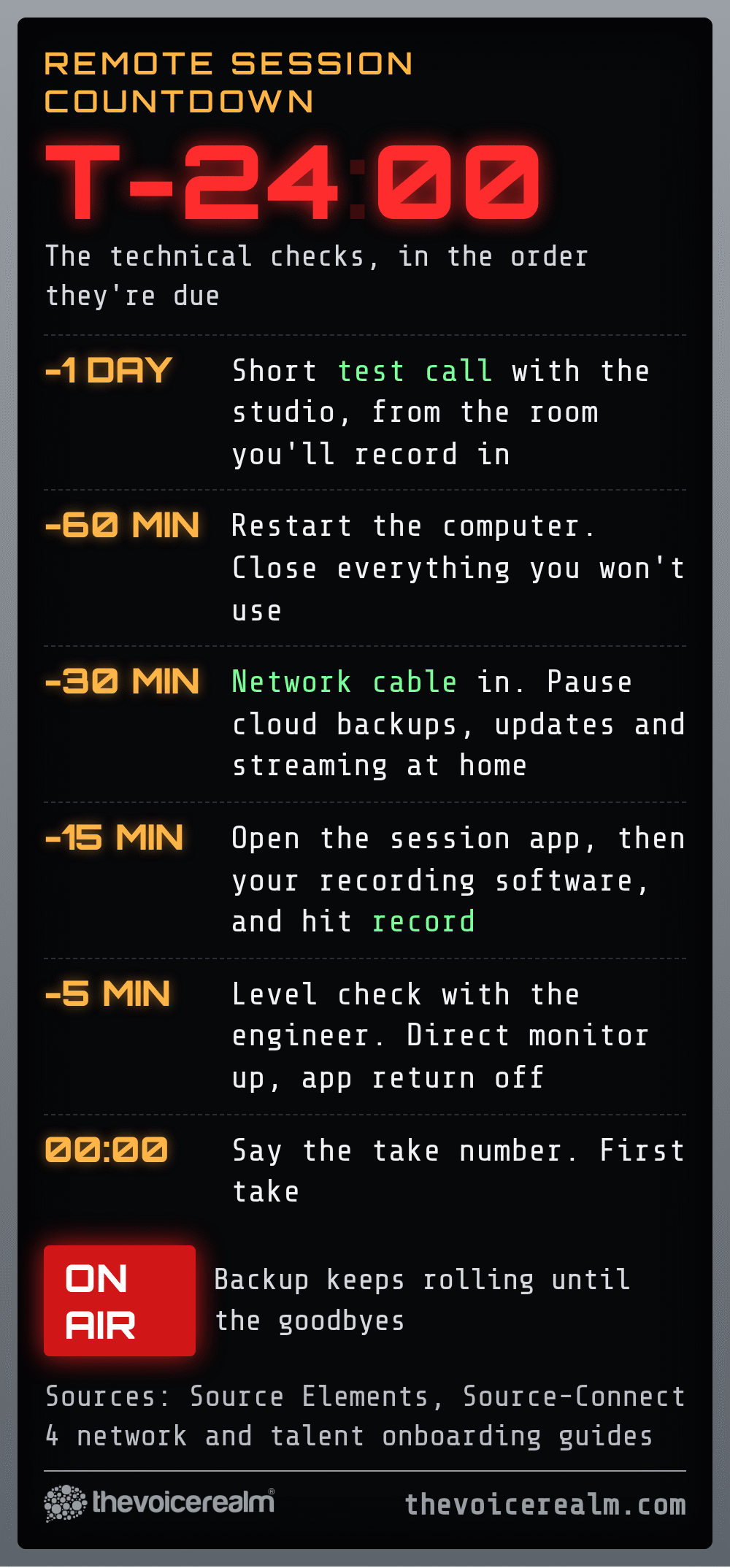
Source-Connect Talent is an app for macOS and Windows that Source Elements describes as “the most requested and used system for remote VO recording sessions.” It’s a paid licence. You install it, add the studio as a contact and they connect to you. Before your first real session, use one of the echo contacts the app gives you. Source Elements says that when you do, “You should hear voice come back into your headphones with a bit of delay,” and that you won’t hear that echo when you connect to a real person.
Source-Nexus Free is the browser version from the same company, and the replacement for what used to be called Source-Connect Now. A studio sends you a link, you open it in your browser and you’re connected, with no licence needed on your side.
ipDTL also runs in the browser. Its maker explains that “In its simplest form, ipDTL connects one computer to another, giving 2-way audio between web browsers, using the wideband low delay Opus codec.” It lists Chrome, Edge and Opera as its browsers, so don’t turn up in a different one.
Zoom, Teams or Meet often run alongside the audio link so the director can see you and talk to you, and sometimes they’re the only link. If it’s Zoom, turn on original sound. The University of Michigan’s IT help explains that it “allows you to preserve the sound from your microphone without using Zoom’s echo cancellation and audio-enhancing features.” Without it, the studio hears your voice after Zoom has tried to clean it up, which is not what they’re paying for.
Your internet matters more than your mic on the day
A great microphone through a shaky connection sounds worse to the client than an average one through a solid line. Source Elements makes a useful point in its network guide: “Bandwidth alone does not describe connection quality.” What breaks sessions is the connection changing from moment to moment, not the headline speed on a test.
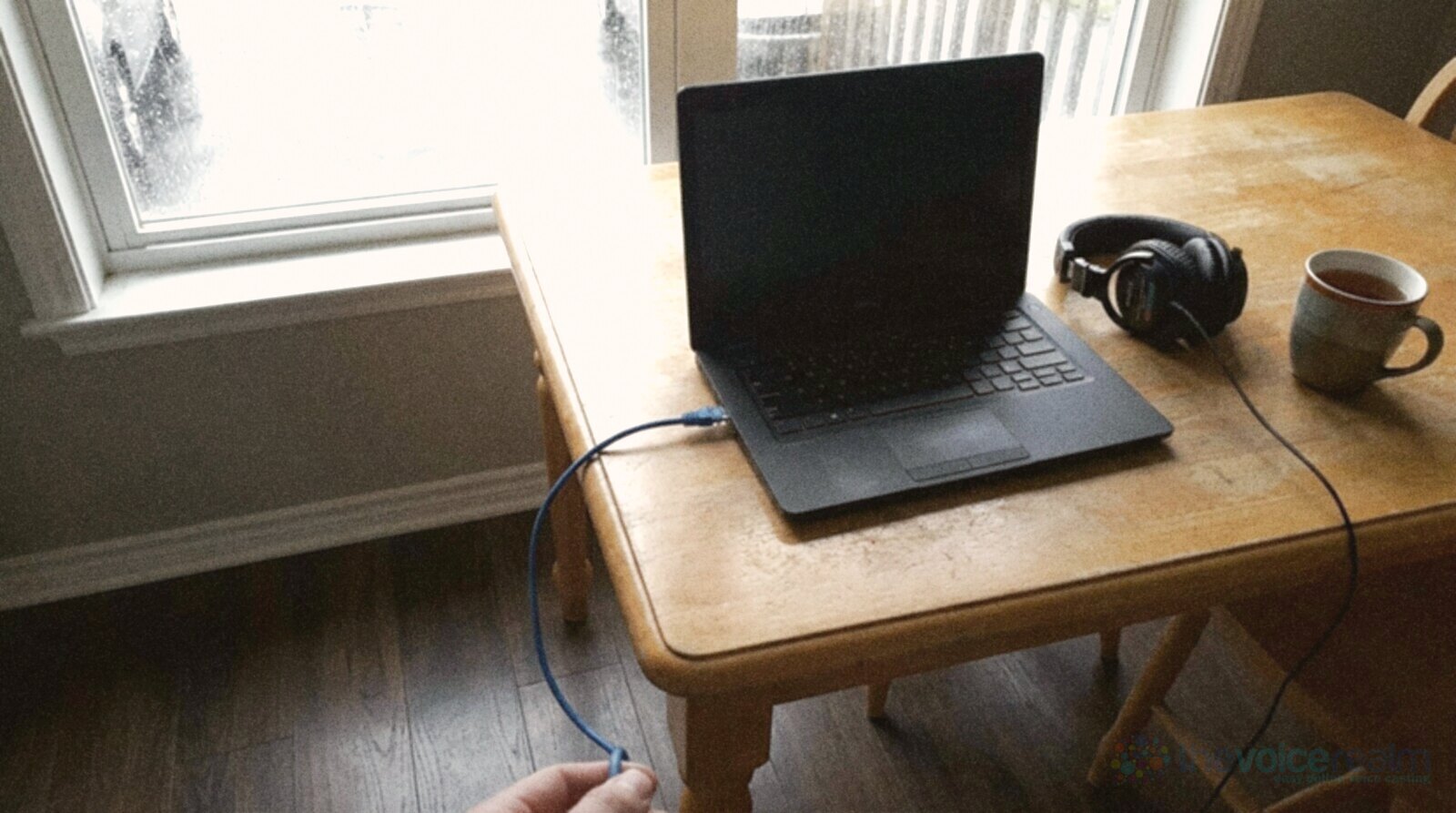
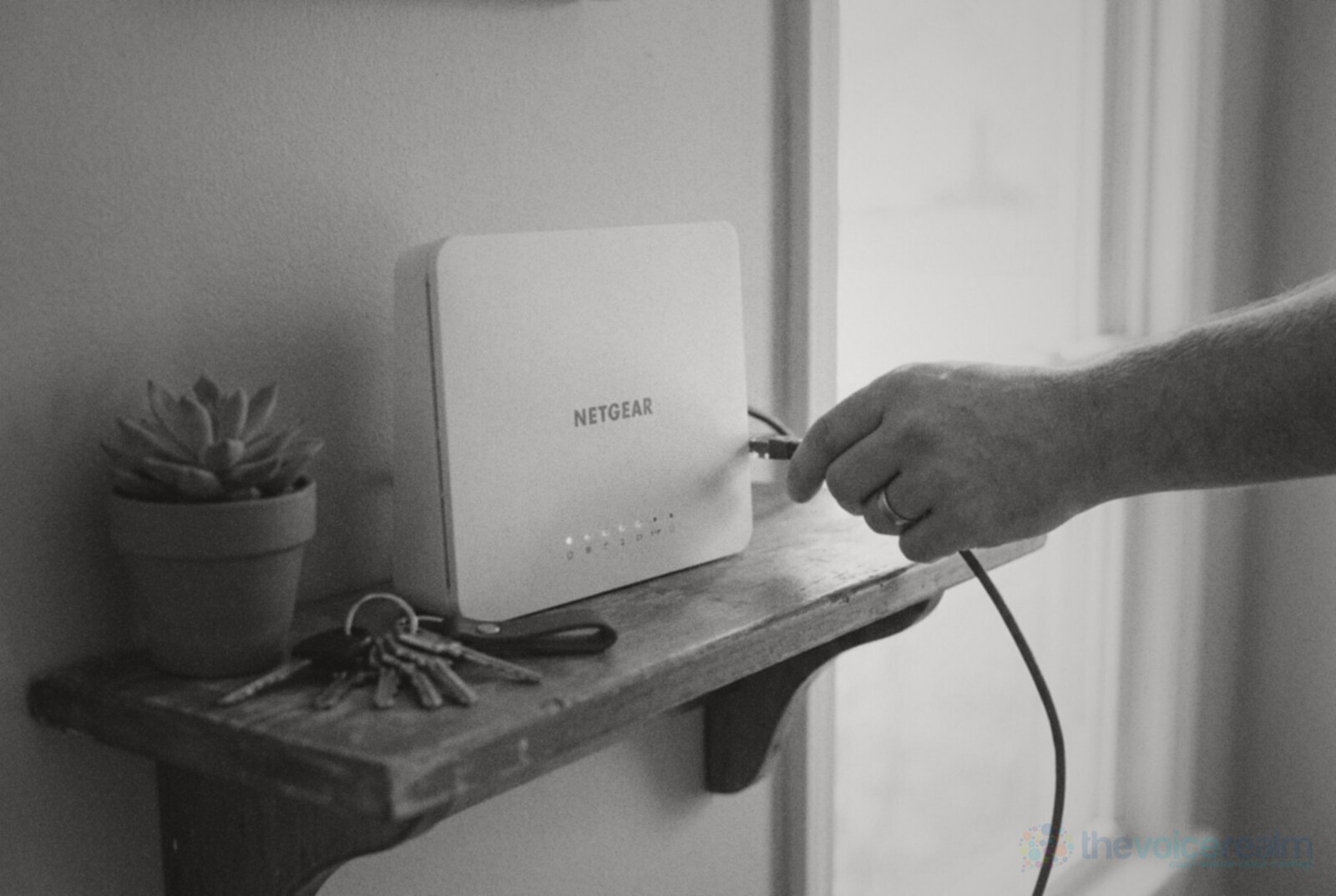
Its first piece of advice is the one to take seriously: “Use wired Ethernet whenever possible.” Wi-Fi works most of the time, but most of the time isn’t good enough when a director’s waiting on take twelve. A cheap network cable from the router to your computer removes a whole category of problems. If your booth is two rooms away from the router, a long flat cable along the skirting board is still the best money you’ll spend on remote work.
For speed, its practical guideline is to allow at least 10 Mbps up and down for every person actively using the connection. So if someone else in the house is streaming a film or the laptop in the kitchen is uploading holiday photos, your share shrinks. Pause cloud backups and software updates on your own computer too. They love to start in the middle of a session.
And test where you’ll actually record. The guide says simply, “Test from the recording location.” A speed test on your phone in the lounge tells you very little about the computer in the cupboard under the stairs.
© The Voice Realm
Hear the director without hearing yourself late
Every internet link adds delay. That’s fine for hearing the director, but it’s a disaster if you hear your own voice coming back through the link a fraction of a second late. It’s like talking with an echo in your ear, and most people start stumbling within a sentence.
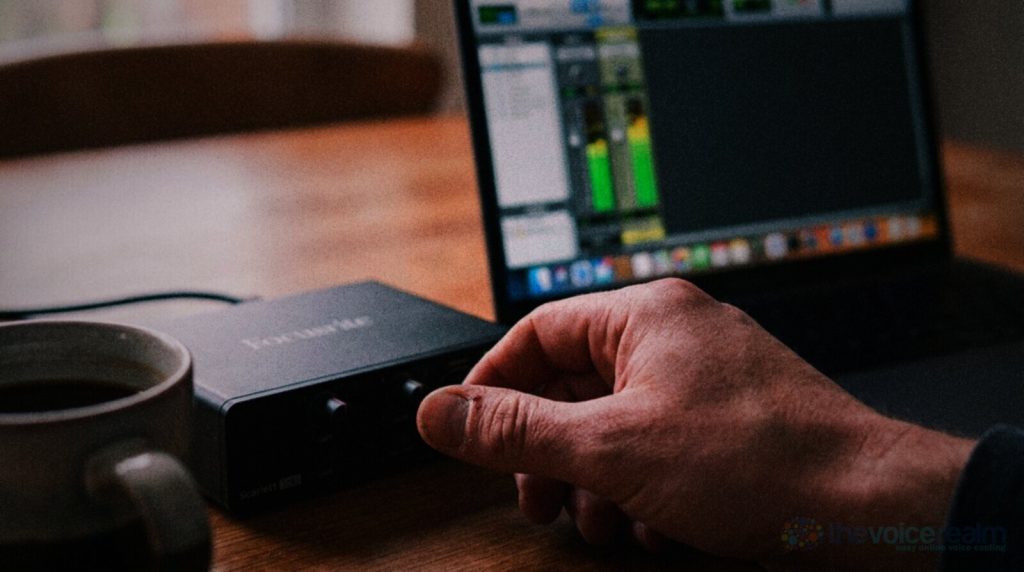
So listen to yourself through your interface, not through the app. Most interfaces have a direct monitoring knob or switch that sends your mic straight to your headphones with no delay. Turn that up for your own voice and let the session software carry only the studio’s talkback. If you can hear yourself twice, once clean and once late, you’ve got your voice coming back from the app as well, and that’s the one to turn off.
Use closed-back headphones. The director’s voice in open-backs leaks into your microphone and the studio hears themselves echoing back. Our guide to choosing headphones that keep the sound in covers what to look for, and why a sensible volume matters over a long session.
If a session uses two apps at once, say Source-Connect for the recording and Zoom for video, ask the engineer which one should get your mic. Two apps listening to the same microphone is a common cause of echo, and the engineer will often want your mic muted in the video call.
Your backup recording is the safety net
Start your own recording before the session begins and leave it running until everyone has said goodbye. Don’t stop and start it between takes. One long file, with every take, every note and every chat, is easier to search later than forty little ones, and you’ll never miss the take they suddenly decide they loved.
On a Mac, Source Elements says you only need to launch your usual recording software and record from your mic, exactly as you would without Source-Connect. On Windows it’s a little more involved and needs a supported recording program with its I/O plugin, so set that up days before, not minutes before.
 VoiceEditSuiteAuto Clean Up now learns you.Your breath, your pace and every fix you make, so each file comes back sounding like you edited it yourself.See how it worksLearns from numbers, never your audio. Never used to train AI.
Record at the format the client asked for, usually what’s set out in our guide to the audio specs behind every voice over file. Say the take number out loud before each take, even if the engineer is slating at their end. When it’s over, ask whether they want your files. Some want everything, raw and unedited, that same day. Some never need them. Either way, keep your copy until the project has gone out.
© The Voice Realm
The night before and the hour before
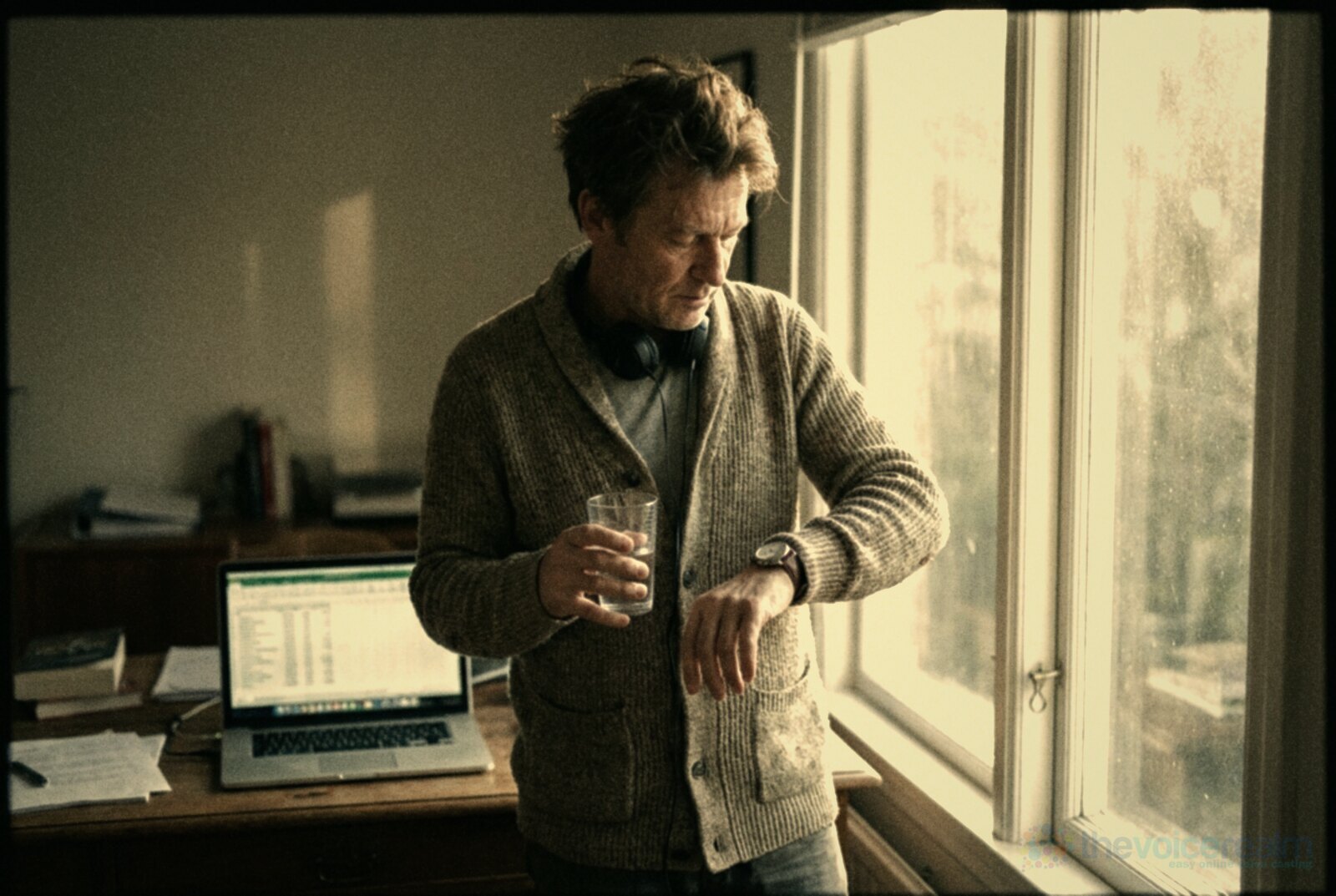
Most remote session problems are solved before anyone presses record. The part people forget isn’t technical at all, it’s the time zone. Check the session time in the studio’s zone and your own, and write both on the confirmation. A ten o’clock booking in London and a ten o’clock booking in Los Angeles are usually eight hours apart, and you don’t want to find that out with a cup of coffee in your hand and nobody on the line.
Ask who’ll be on the call. An engineer alone is a quick, technical session. An engineer, a director, a writer and two people from the brand is a meeting with a microphone in it, and it will run longer. Ask for the final script, and check whether there’s more than one version flying around. Print it or put it on a tablet that won’t light up with messages.
Source Elements also suggests arranging “a short Source-Connect test with your remote participant before the session.” Most studios are happy to do one, and five minutes on a quiet afternoon beats fifteen at the top of a paid hour.
© The Voice Realm
During the session, be easy to work with
Directors and engineers remember the voice actors who made the session feel like a studio session. That’s down to a few small habits more than any equipment.
- Be ready when they are. Mic on, levels checked and water within reach before the call time, not after.
- Keep quiet between takes. Your mic is live, so pages, sips and sighs go straight to the studio.
- Write every note down. Pencil the changes on the script as they give them, so take six doesn’t undo take four.
- Ask once, then try it. If a note is unclear, ask a quick question and then give them a take. A read tells them more than a discussion.
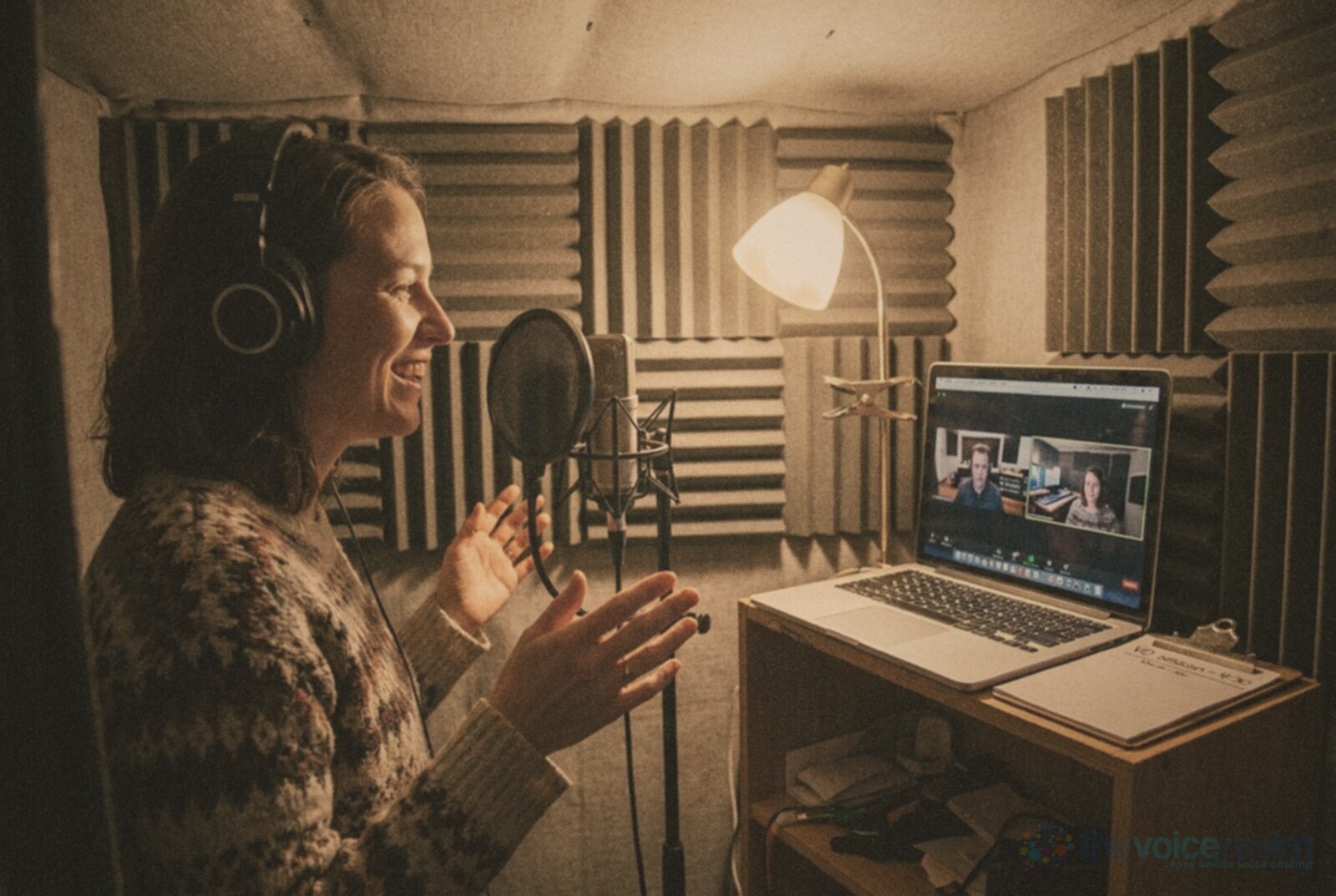
A video link changes things a little. Frame yourself so the director can see your face, not the top of your head behind the pop filter, and light it from the front. Our guide to taking direction in a live session goes deeper into reading notes and giving adjustments quickly, which matters even more when the director is a little face in the corner of a laptop.
© The Voice Realm
When the line drops, keep going
It will happen one day. The audio cuts out, the video freezes on someone mid-blink, and the room goes silent. Don’t panic and don’t stop your recording. Your backup is still rolling, which means nothing you’ve done so far is lost.
Have a second way to reach the studio, ideally a phone number for the engineer or producer, written on the confirmation. Message them, reconnect, and when you’re back, tell them which take you were on. If the link won’t come back, offer to finish the session to their direction over the phone and send your files straight after. That’s exactly what the backup was for, and a studio won’t forget the actor who saved the morning.
After a few remote sessions, the whole thing becomes as ordinary as recording on your own. The cable stays plugged in, the backup’s always rolling, and your attention goes where it should, on the read.
Sources: Source Elements, “Onboarding with Source-Connect Talent”; Source Elements, “Network Configuration and Bandwidth for Source-Connect 4”; Source Elements, “Source-Nexus Free will be replacing Source Elements’ Source-Connect Now”; ipDTL, “Live radio remotes using a web browser”; University of Michigan ITS, “Zoom: Enabling Original Sound / Music and Professional Audio Settings”; Dee Bradley Baker, I Want To Be A Voice Actor!, “Source Connect & Zoom”.
Ready to get booked?
See the jobs open right nowAbout Sarah Robbins
Sarah Robbins writes for The Voice Realm about finding voice over work, home studios, casting and the business side of voice acting.